Wi-Fi router
Setting Bancuh DNS on your router is the simplest way to cover everything at home: phones, laptops, smart TVs, consoles and guests’ devices. You change one setting and nothing needs to be done on each device.
How home DNS works
Section titled “How home DNS works”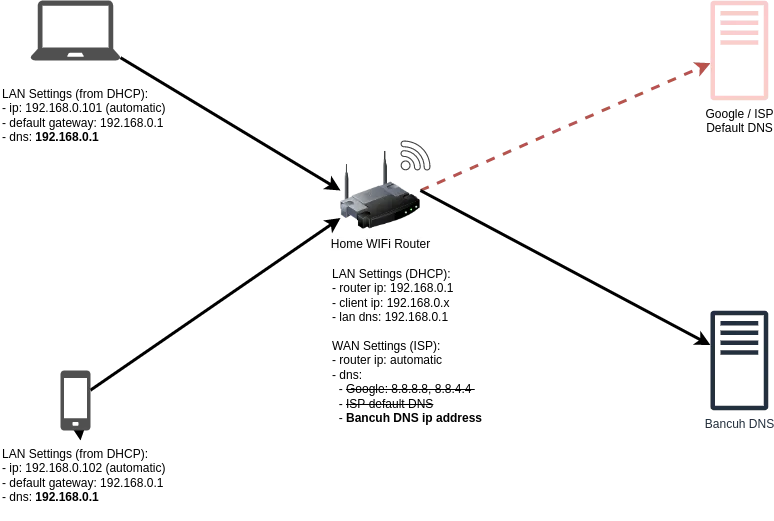
Your router gets an internet connection from your provider, along with a set of DNS servers to use. This is the WAN DNS, usually your provider’s own servers or Google’s.
Each device that joins your Wi-Fi is given an address by the router, and told to use the router itself for DNS. When a device looks up a name:
- The device asks the router.
- The router answers from its cache if it can.
- Otherwise the router asks its WAN DNS servers, caches the answer and passes it back.
So changing the router’s WAN DNS to Bancuh DNS makes every device on the network use it, without touching the devices.
Set it up
Section titled “Set it up”You’ll need these addresses:
| Server | IPv4 | IPv6 |
|---|---|---|
| us-dns1 | 45.33.24.129 | 2600:3c00::f03c:94ff:fe97:f94f |
| Server | IPv4 | IPv6 |
|---|---|---|
| fr-dns1 | 51.158.99.7 | 2001:bc8:710:1efa:dc00:ff:fe34:a339 |
| fr-dns2 | 163.172.180.231 | 2001:bc8:710:1efb:dc00:ff:fe34:a1d7 |
| Server | IPv4 | IPv6 |
|---|---|---|
| sg-dns1 | 139.59.219.245 | 2400:6180:0:d0::f7:1001 |
| sg-dns2 | 139.59.218.207 | 2400:6180:0:d0::f5:7001 |
| Server | IPv4 | IPv6 |
|---|---|---|
| jp-dns1 | 103.29.68.118 | 2400:8902::f03c:92ff:fe3e:46cd |
| jp-dns2 | 172.105.195.19 | 2400:8902::f03c:94ff:fee9:70 |
-
Open your router’s admin page in a browser. It is usually at
http://192.168.0.1orhttp://192.168.1.1, and the address and password are often printed on a sticker on the router.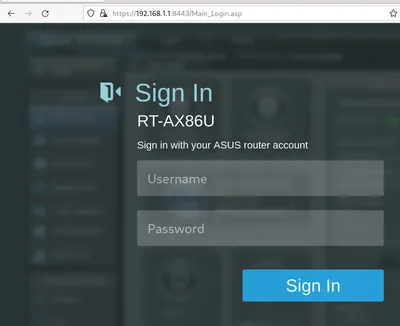
-
Find the WAN or Internet settings, and look for the DNS options. You may need to switch DNS from automatic to manual.
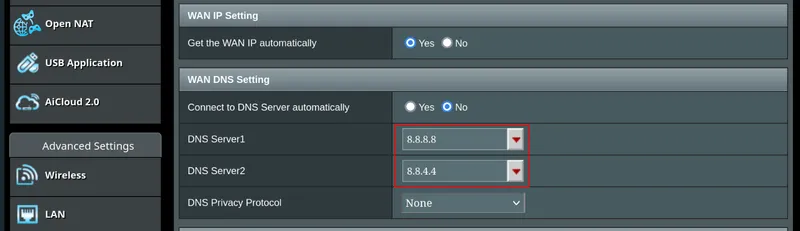
-
Enter the two IPv4 addresses for your location as the primary and secondary DNS servers, and save.
-
If your connection has IPv6, find the IPv6 WAN settings, which are often on a separate page, and enter the two IPv6 addresses there.
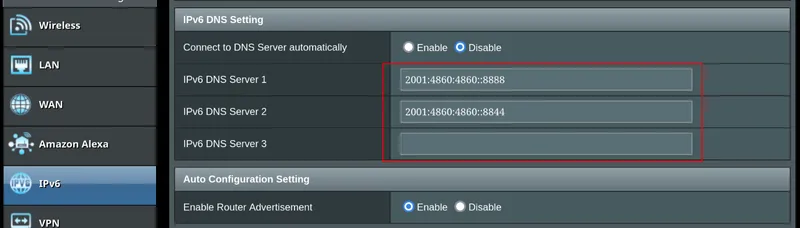
-
Check the LAN or DHCP server settings. The DNS server handed to devices should be the router’s own address, or left on automatic. If it lists other DNS servers such as
8.8.8.8, devices will skip the router and bypass Bancuh DNS. -
Reconnect your devices to Wi-Fi, or restart them, so they drop any cached lookups. Then check that it works.
If your router doesn’t let you change DNS
Section titled “If your router doesn’t let you change DNS”Some routers supplied by internet providers lock the DNS settings. You have a few options:
- Look for DNS under the LAN / DHCP settings instead. Handing Bancuh DNS addresses straight to devices works just as well.
- Set up each device individually using the other setup guides.
- Put your own router behind the provider’s, and set DNS on yours.